A Beginner's Guide to Protecting Your Home Network
You’ve invested in a fast internet connection, a reliable router, and perhaps a smart home full of connected devices. But have you given enough thought to securing the invisible highway your data travels on? In my experience, most people treat their home network like a utility – plug it in, and it just works. The reality, however, is that your home Wi-Fi is the gateway to your digital life, and leaving it unsecured is like leaving your front door unlocked. Without proper precautions, you’re exposing sensitive personal data, device vulnerabilities, and even your family’s privacy to potential threats. It’s not about being a cybersecurity expert; it’s about understanding a few fundamental principles that make a world of difference. The mistake I see most often is a belief that “it won’t happen to me” or that basic password protection is enough. What changed everything for me was realizing that every connected device, from a smart TV to a doorbell camera, presents a potential entry point, and a layered approach to security is not just for corporations—it’s essential for peace of mind at home. Let’s delve into practical steps that anyone can implement to fortify their digital perimeter.
Key Takeaways
- Change your router’s default login credentials immediately after setup to prevent easy unauthorized access.
- Implement a strong, unique password for your Wi-Fi network and choose WPA3 encryption for enhanced security.
- Create a separate guest Wi-Fi network to isolate visitors and smart devices from your main network.
- Regularly update your router’s firmware to patch security vulnerabilities and improve performance.
- Disable Universal Plug and Play (UPnP) on your router to close potential security loopholes.
Rethink Your Router’s Default Credentials Immediately
When you first unbox a new router or have one installed by your internet service provider (ISP), it comes pre-configured with a default username and password. Typically, these are incredibly generic combinations like “admin/admin,” “user/user,” or “admin/password.” In my experience, a surprising number of people never change these. They assume the factory settings are sufficient, or they simply forget. This is, without a doubt, the single biggest oversight most home users make, and it creates a gaping hole in their network’s defenses.
The problem is, these default credentials are often publicly known or easily guessed. Hackers maintain databases of default login information for thousands of router models. If they can gain access to your router’s administration panel, they can do virtually anything: change your Wi-Fi password, redirect your internet traffic to malicious websites, block your access to your own network, or even install malware on your devices. This isn’t theoretical; it happens far more often than people realize, particularly with older or less popular router models.
What changed everything for me was seeing a friend’s entire network compromised because they hadn’t changed their default login. Their smart devices were suddenly acting erratically, and their internet speed plummeted. The fix was simple once identified, but the experience was a stark reminder. Your first line of defense isn’t your Wi-Fi password; it’s the login to the device that controls your entire network.
Actionable Step: Immediately after setting up your router, or even right now, log into its administrative interface (usually by typing its IP address, like 192.168.1.1, into your browser). Navigate to the settings section where you can change the router’s login username and password. Choose a strong, unique password that combines uppercase and lowercase letters, numbers, and symbols. Avoid using easily guessable information like your name, pet’s name, or birth date. Consider using a password manager to store this securely, as you won’t need to access it frequently, but it must be robust.
Fortify Your Wi-Fi Password and Encryption Protocol
Once you’ve secured the router’s administrative access, your next critical step is to strengthen your Wi-Fi network’s password and ensure you’re using the most robust encryption available. Many people assume any password is fine, but just like your router login, a weak Wi-Fi password is an open invitation for trouble. The other common misconception is that all Wi-Fi security is equal. It’s not. Outdated encryption protocols offer little protection against determined attackers.
Think of your Wi-Fi password as the key to your digital home. If it’s a simple, short string of characters, it can be cracked using brute-force attacks or dictionary attacks in a matter of minutes or hours, depending on its complexity. Once an unauthorized user is on your network, they can potentially snoop on your internet traffic, access shared files, or exploit vulnerabilities in your connected devices. This is particularly concerning if you have smart home devices that communicate over your network, as they can be hijacked or used as stepping stones to other parts of your network.
Beyond the password, the encryption protocol your router uses is equally vital. There are several standards: WEP (Wired Equivalent Privacy) is ancient and easily broken, WPA (Wi-Fi Protected Access) is better but still vulnerable, WPA2 is the most common and generally secure, and WPA3 is the newest and most robust. The difference in these protocols lies in how they encrypt data and prevent unauthorized decryption. A router still using WEP is essentially an open network.
Actionable Step: Log into your router’s administration panel. Locate the Wi-Fi settings (often under “Wireless” or “Security”). Set a strong, unique password for your main Wi-Fi network, aiming for at least 12-16 characters with a mix of uppercase and lowercase letters, numbers, and symbols. Next, check the “Security Mode” or “Encryption Type.” Always select WPA3-Personal if your router and devices support it. If WPA3 isn’t available, choose WPA2-PSK (AES). Avoid WEP or WPA/WPA2-mixed modes. Once you’ve updated these settings, you’ll need to reconnect all your devices to the Wi-Fi network using the new password.
Establish a Separate Guest Network for Visitors and Smart Devices
This is a feature many modern routers offer, yet it’s often overlooked or misunderstood. The concept of a guest network isn’t just about providing convenient access for visitors; it’s a critical security measure that acts as a firewall between your main, trusted network and less trusted devices or users. In my experience, this single step significantly reduces the attack surface of your home network, especially as more smart devices proliferate in our homes.
Imagine your main network holds all your sensitive data: your personal computer, smartphone with banking apps, network-attached storage, and perhaps a smart security camera. Now, consider a visitor connecting their phone to your Wi-Fi, or a smart plug for a lamp. These devices, especially less expensive smart home gadgets, often have weaker security protocols or may not receive regular updates. If one of these devices is compromised, a hacker could potentially use it to gain access to your entire main network. The same risk applies to friends or family whose devices might be unknowingly infected with malware.
A guest network isolates these connections. It typically provides internet access but prevents devices on the guest network from seeing or communicating with devices on your primary network. This means if a guest’s device gets infected, or a smart thermostat has a vulnerability, it won’t directly expose your laptop or sensitive files.
Actionable Step: Access your router’s administrative interface. Look for a setting labeled “Guest Network,” “Guest Wi-Fi,” or similar. Enable it and set a strong, unique password for this guest network—different from your main Wi-Fi password. Many routers also allow you to configure guest network settings, such as restricting access to local network resources (which you should do) and limiting bandwidth (optional). Connect all visitor devices, smart home gadgets, and any other less critical or potentially vulnerable devices to this guest network. This provides an extra layer of protection for your core digital assets.
Regularly Update Your Router’s Firmware
Most people know they need to update their computer’s operating system and smartphone apps. However, router firmware, the specialized software that controls your router’s functions, is often neglected. In my experience, this oversight is a significant security risk. Router manufacturers frequently release firmware updates to patch newly discovered security vulnerabilities, improve performance, and add new features. Ignoring these updates leaves your network exposed to known exploits.
Consider the analogy of a lock on your door. Over time, locksmiths might discover flaws in certain lock models. The manufacturer would then release an improved version, or a patch, for that lock. If you never update your lock, you’re still using the version with the known flaw, making it easier for someone to break in. The same principle applies to your router. Cybercriminals are constantly looking for weaknesses in widely used firmware, and once found, they exploit them until a patch is applied.
The mistake I see most often is users believing their router updates automatically or that manual updates are too complicated. While some newer routers do offer automatic updates, many older or budget models require a manual check and installation. The procedure typically involves downloading a file from the manufacturer’s website and uploading it through the router’s admin panel. It sounds technical, but it’s often a straightforward process with clear instructions.
Actionable Step: Log into your router’s administration interface. Look for a section like “Firmware Update,” “System Update,” or “Maintenance.” Check the manufacturer’s website for your specific router model to see if a newer firmware version is available. Download the latest firmware file and follow the on-screen instructions in your router’s interface to install it. It’s good practice to do this at least once every few months. Always back up your router’s configuration settings before performing a firmware update, if that option is available, to easily restore them if anything goes wrong.
Disable Universal Plug and Play (UPnP) on Your Router
Universal Plug and Play (UPnP) is a feature designed to make it easy for devices on your network, like gaming consoles or smart cameras, to automatically discover each other and open ports on your router to communicate with the outside world. While this sounds convenient, in my experience, UPnP poses a significant security risk for home users and is often a backdoor for malware and unwanted intrusions. What changed everything for me was understanding how this seemingly benign feature could be exploited.
The convenience of UPnP comes at a cost to security. The protocol has known vulnerabilities that allow malicious software or even external attackers to open ports on your router without your explicit permission or knowledge. This means that if just one device on your network is compromised with malware, that malware can use UPnP to open a pathway from the internet directly into your home network, bypassing your firewall. This is a far greater risk than manually opening a port for a specific application because UPnP operates in the background, often unnoticed, and without requiring any user intervention for new connections.
For example, some smart devices with weak security might use UPnP to expose themselves to the internet, making them vulnerable to direct attacks. A malicious website you visit could even attempt to use UPnP to open a port on your router and gain access to your internal network. The vast majority of home users don’t need UPnP, and the minimal convenience it offers is vastly outweighed by the security risks.
Actionable Step: Log into your router’s administration panel. Navigate to the advanced settings section. Look for a setting labeled “UPnP,” “Universal Plug and Play,” or similar. Disable this feature. While some gaming consoles might require specific ports to be open for optimal performance, it is much safer to manually forward those specific ports through your router’s firewall (a setting usually found under “Port Forwarding”) rather than leaving UPnP enabled and risking broader network exposure. For most everyday internet use and smart home devices, UPnP is entirely unnecessary.
Frequently Asked Questions
How often should I change my Wi-Fi password?
While there’s no hard and fast rule, changing your main Wi-Fi password every 6-12 months is a good security practice. If you suspect unauthorized access, or if you’ve recently had many visitors using your guest network, it’s wise to change it sooner. The most important thing is that it remains strong and unique.
Can my ISP track my internet activity even if I secure my home Wi-Fi?
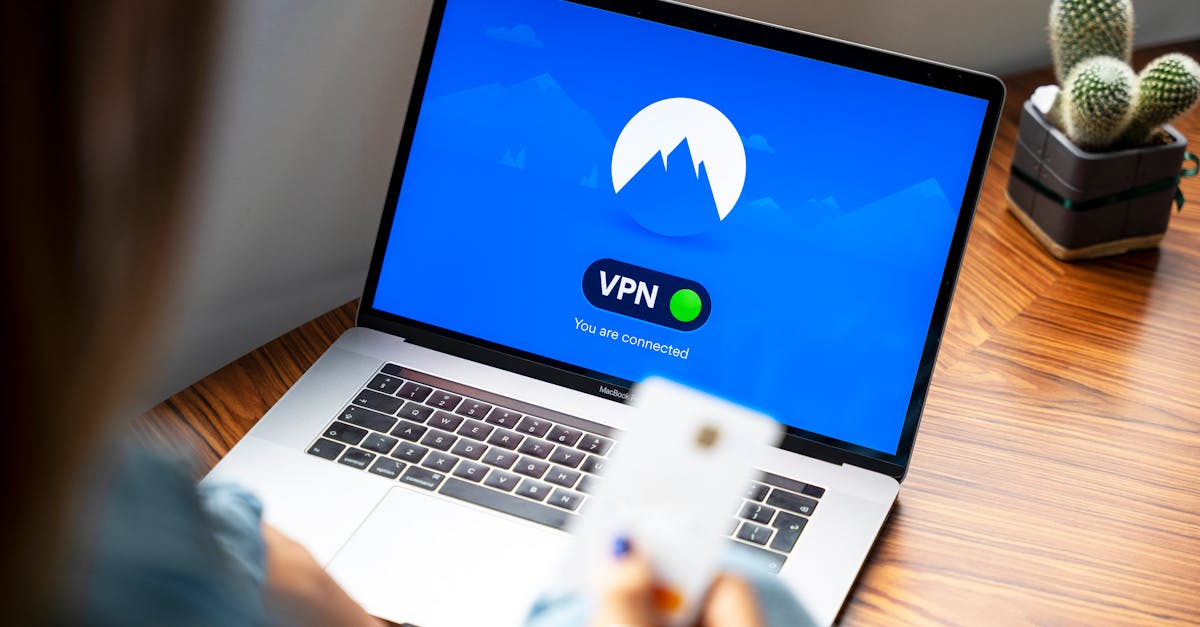
Yes, securing your Wi-Fi network primarily protects against local unauthorized access to your network. Your Internet Service Provider (ISP) still has visibility into your internet traffic, including the websites you visit and your online activities. For enhanced privacy from your ISP, you would need to consider using a Virtual Private Network (VPN).
Is it safe to use public Wi-Fi networks?
Public Wi-Fi networks (like in cafes or airports) are generally less secure than your home network. It’s much easier for malicious actors to snoop on your activity or inject malware. Always assume public Wi-Fi is unsecure. Avoid accessing sensitive information (like banking or shopping with credit cards) and use a VPN if possible when connected to public networks.
What are other signs my home network might be compromised?
Beyond slow internet speeds, signs of a compromised network can include new, unfamiliar devices appearing on your router’s connected devices list, pop-up ads appearing more frequently (even when not browsing), your router’s lights blinking unusually, or your home smart devices behaving erratically. If you notice any of these, review your router’s settings and consider a factory reset.
Should I hide my Wi-Fi network name (SSID)?
Hiding your Wi-Fi network name (SSID broadcast) is often thought to be a security measure, but in my experience, it provides very little actual security. A determined attacker can still detect hidden SSIDs using readily available tools. It can also make it more difficult for your own devices to connect. Focus instead on a strong Wi-Fi password and WPA3/WPA2 encryption, as those provide real security benefits.
Written by Sarah Chen
Productivity & Home Organization
A former educator passionate about lifelong learning and efficient living.
You Might Also Like
Six Inches of Topsoil Isn't Enough: Why Your Home Garden Is Failing to Thrive
Discover why six inches of topsoil is often insufficient for a thriving home garden, and learn the deeper soil strategies that unlock real growth.
Secure Your Home Network After a VPN Setup Without Missed Vulnerabilities
After setting up a VPN, don't miss these critical steps to secure your home network and protect your digital privacy. Learn how to prevent overlooked vulnerabilities.
Three Weeks Without a Smart Vacuum: My Cleaning Revelation
After relying on a smart vacuum for years, I tried three weeks without it. Here's how it shifted my approach to home cleaning and what I learned about true efficiency.